6-step setup · ~2 minutes
How to connect Instagram with BuzzInsect
Connecting your Instagram lets brands see your real reach and engagement — and unlocks every campaign on BuzzInsect. Here's the exact flow.
Before you start
- An Instagram Creator or Business account (Step 1 shows how to switch).
- 2–3 minutes. We never see or store your Instagram password.
1
Switch your Instagram to a Creator or Business account
BuzzInsect uses Instagram's official Business Login, which only works with Professional accounts (Creator or Business). If you're on a Personal account, switch first — it's free, takes 30 seconds, and your followers won't notice.
- Open Instagram → tap your profile picture (bottom right).
- Tap the menu icon (top right) → Settings and privacy.
- Scroll to Account type and tools → Switch to professional account.
- Pick Creator (recommended for influencers) → choose a category → continue.
2
Open BuzzInsect and go to your Profile
Log into your BuzzInsect creator account at buzzinsect.com (or open the mobile app), then tap the Profile tab.
3
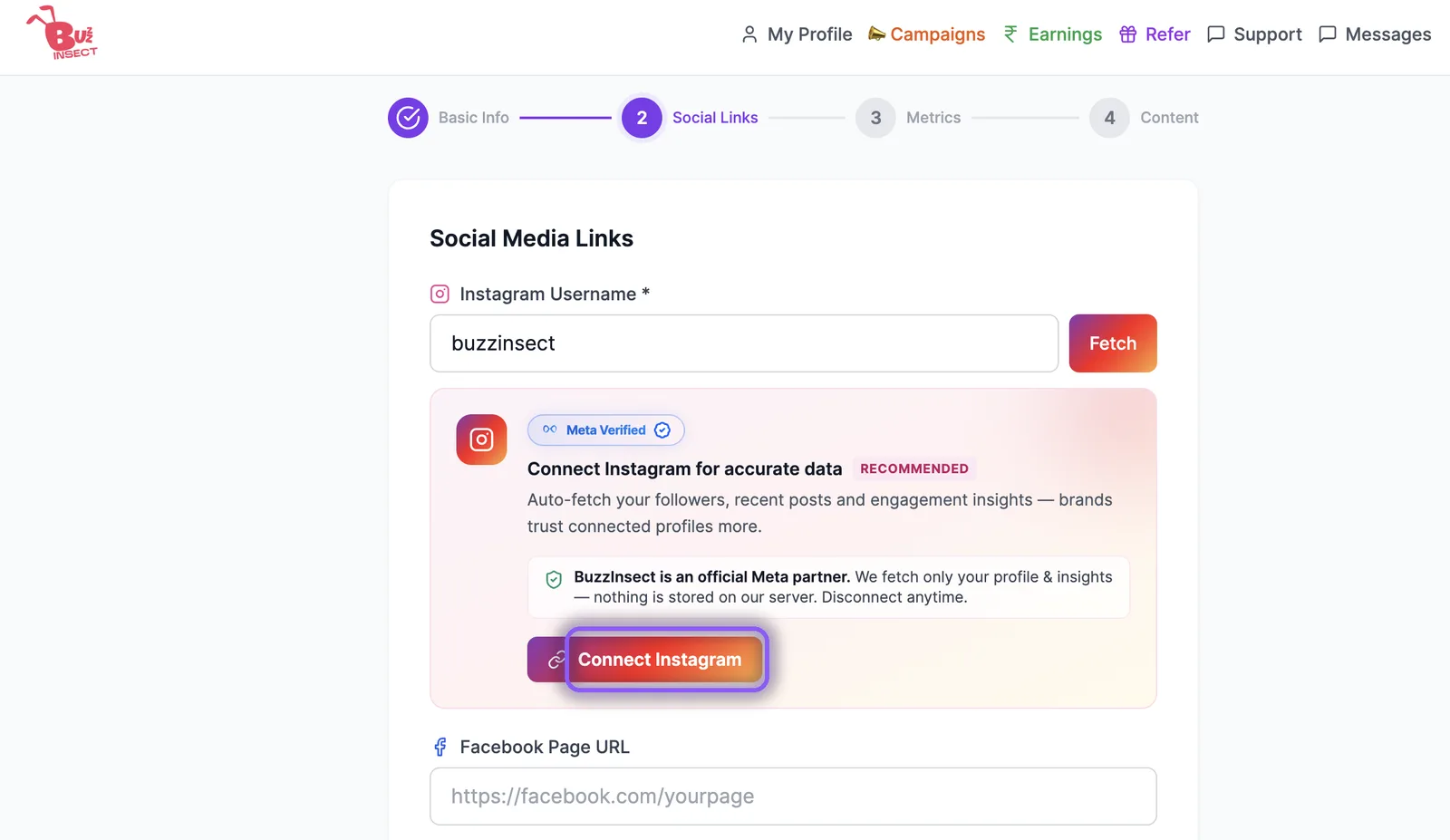
Tap "Connect Instagram"
On your profile you'll see a purple Connect Instagram button near the top. Tap it. A secure Instagram login window will open — this is Instagram's own page, not BuzzInsect.
4
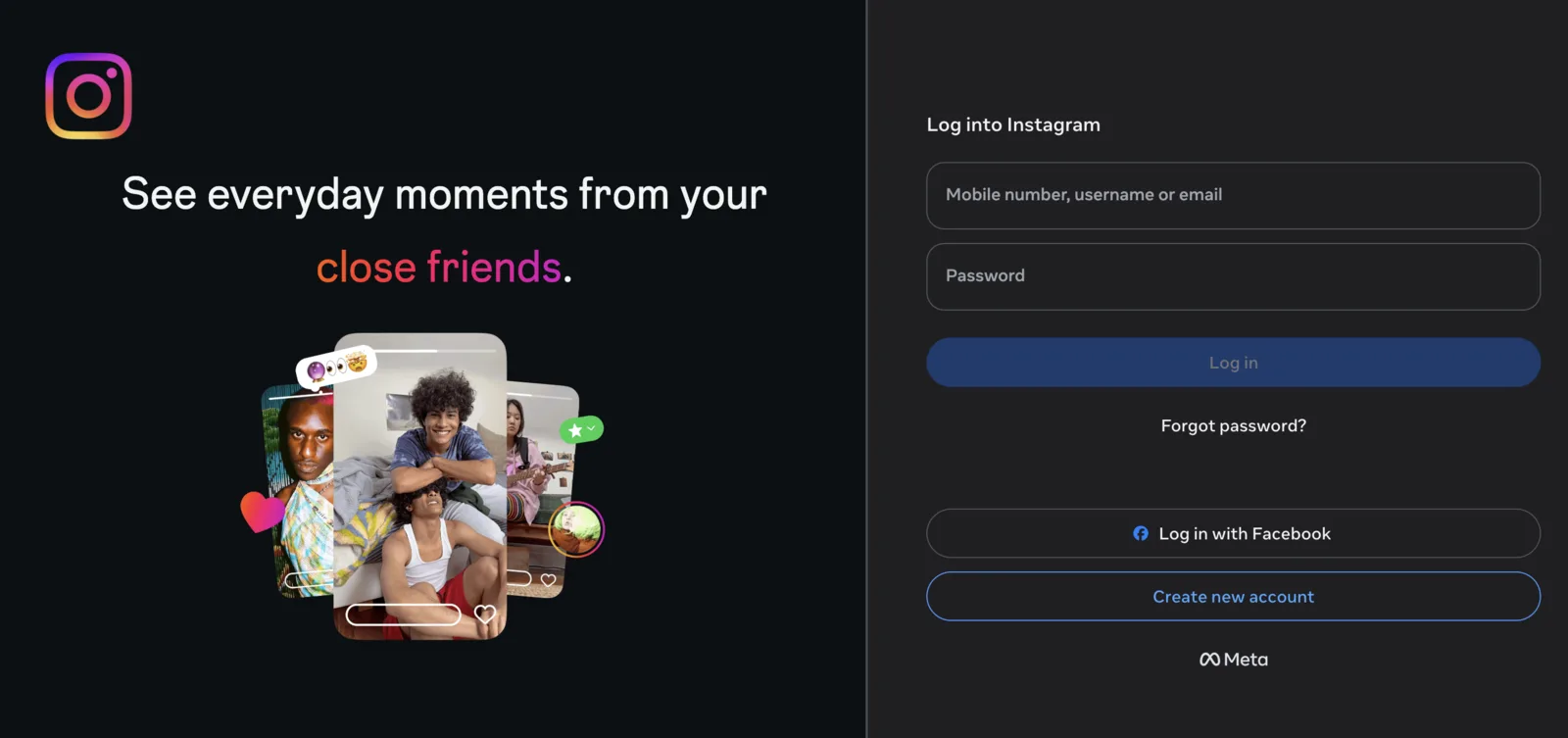
Log in with your Instagram username & password
Enter the Instagram username and password for the account you want to connect. No Facebook account is needed — this is Instagram's direct Business Login.
Already logged into Instagram on this device? Instagram may skip the password step and take you straight to the next screen.
5
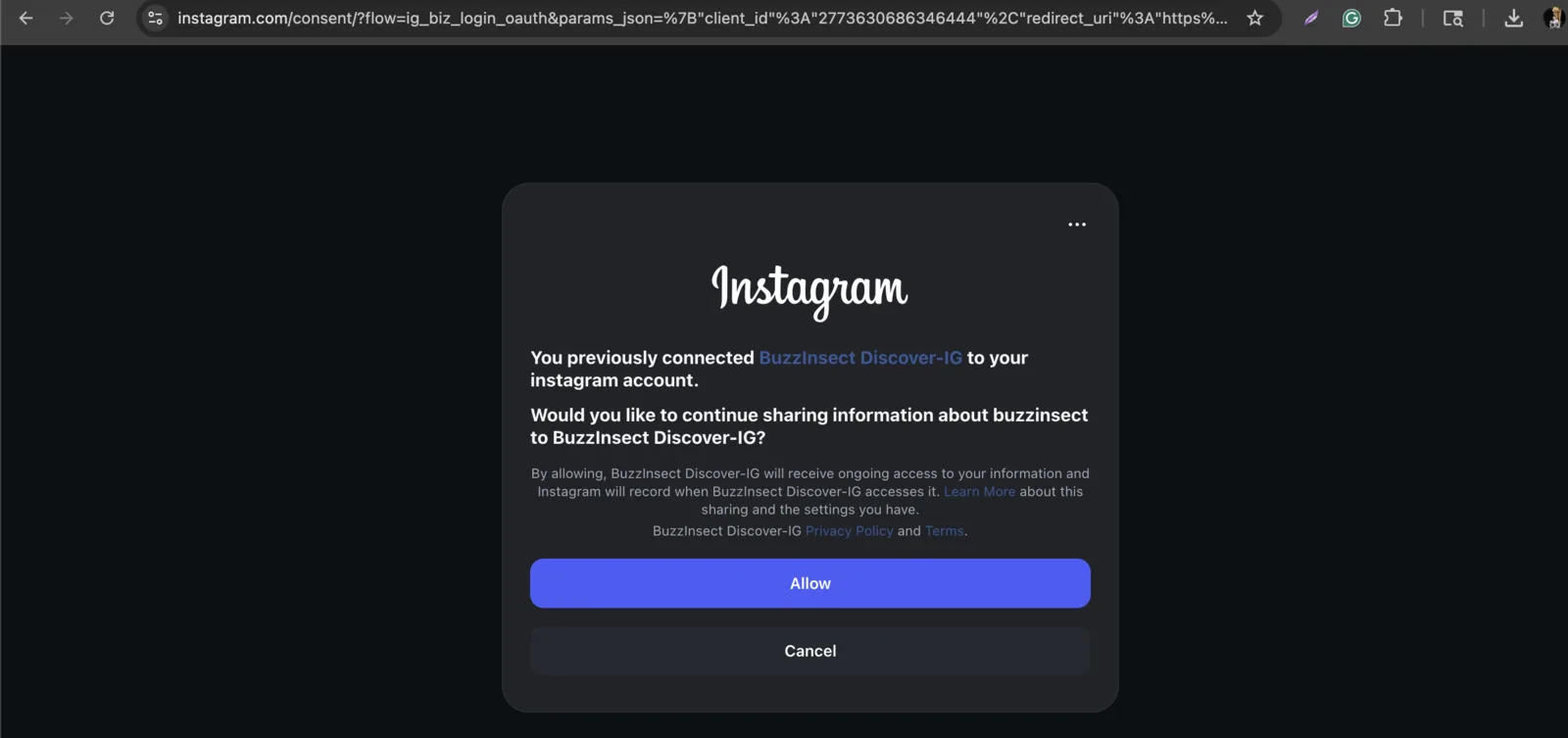
Review and tap "Allow"
Instagram shows you exactly what BuzzInsect is requesting — read access to your profile, follower count, media, and insights. Tap Allow. You can revoke this any time from Instagram → Settings → Apps and websites.
6
You're connected!
You'll be redirected back to BuzzInsect with a green confirmation banner. Your followers, bio, profile picture, and recent posts will sync within a few seconds. Once our team reviews your profile (24–48 hours), your status moves from Pending to Verified and you can start applying to campaigns.
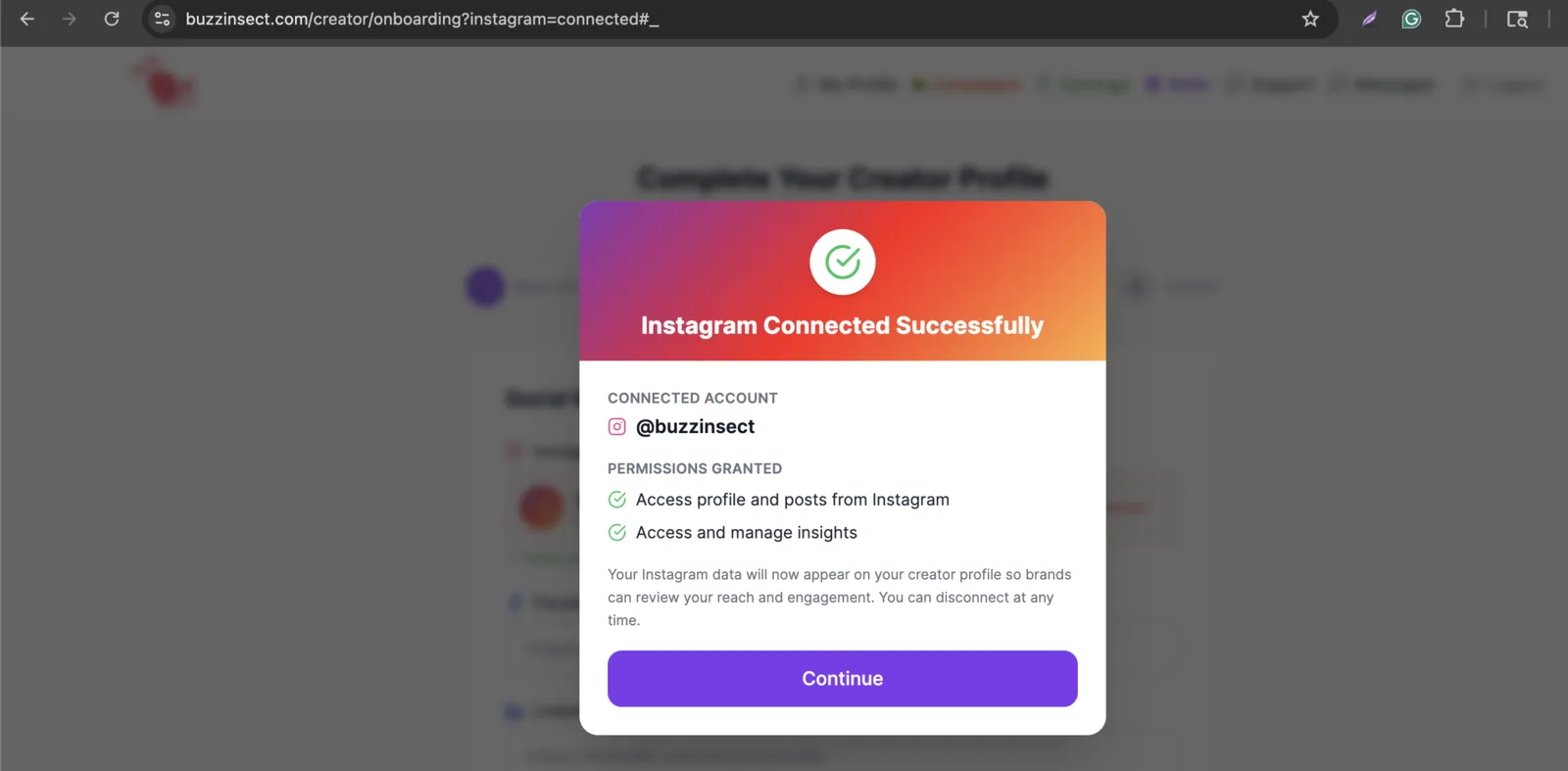
You're all set — congrats!
Your Instagram data will refresh weekly automatically. You can also hit Refresh Instagram Data on your profile any time to pull the latest.
Common errors & fixes
"This Instagram account is not a Professional account"
Repeat Step 1 — open Instagram, go to Settings → Account type and tools → Switch to professional account, and pick Creator or Business. Then return to BuzzInsect and retry.
Instagram says my username or password is wrong
Double-check you're using your Instagram credentials (not Facebook). If you've forgotten your password, tap “Forgot password?” on the Instagram login screen to reset it, then come back and try again.
The Instagram popup closed without doing anything
Your browser may have blocked the popup. Look for a small icon in the URL bar offering to allow popups for buzzinsect.com, or try a different browser (Chrome and Safari work best).
I have multiple Instagram accounts — which one do I pick?
Pick the one you want brands to see and pay for. You can only connect one Instagram per BuzzInsect account today, but you can disconnect and reconnect with a different one later.
I tapped "Cancel" by mistake
No problem — just tap Connect Instagram again from your Profile and Instagram will start the flow over. Nothing was saved.
Related
Still stuck?
Share a screenshot — we'll fix it for you.
Send us the error you're seeing and we'll respond within a few hours during business days.